
The ALL NEW Psychic Desktop App
A Psychic Chat you will love

How to install Psychic Desktop App on your desktop computer
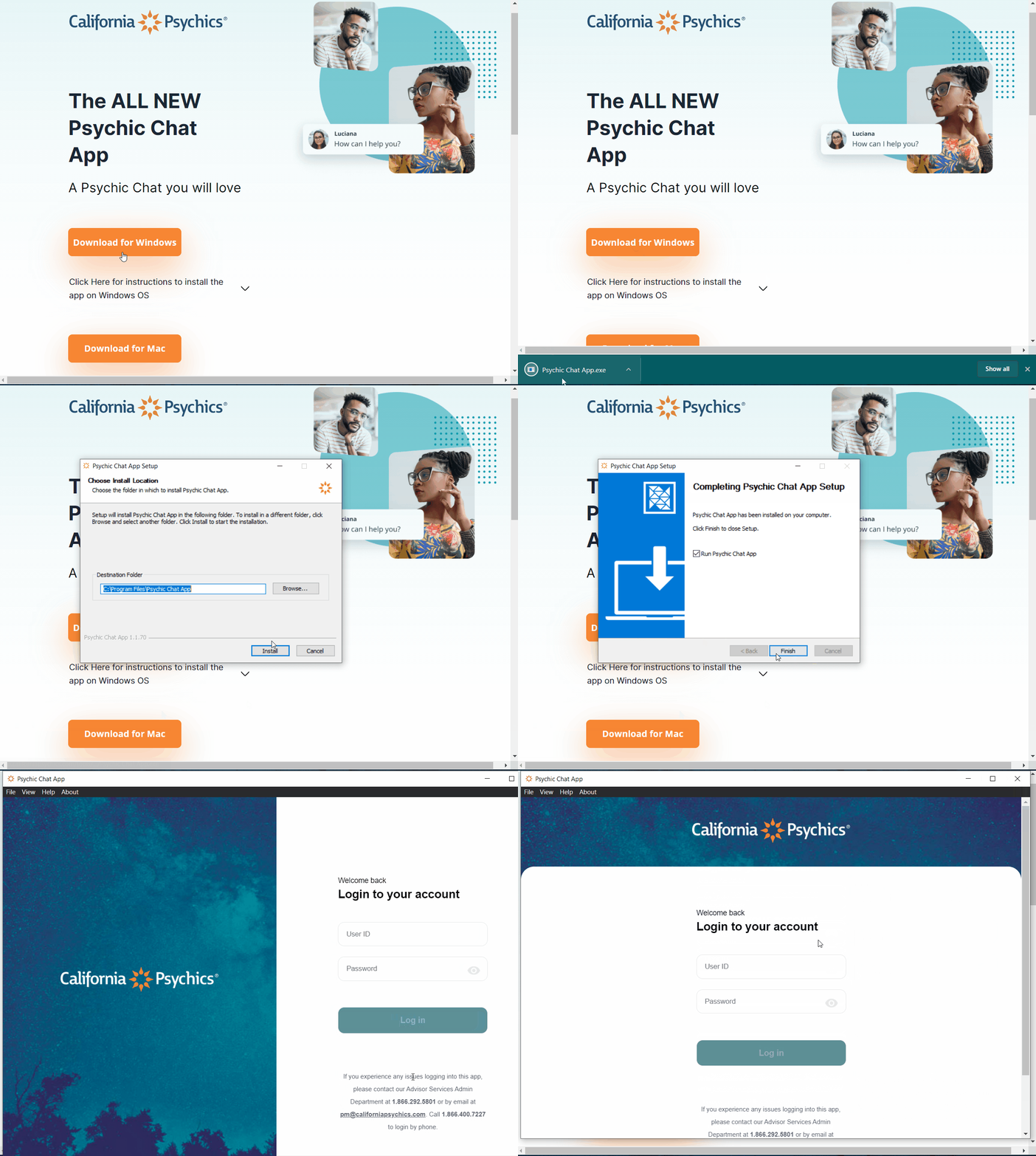
- Download the desktop app from our website using Google Chrome, by clicking the button "Download for Windows"
- Initiate installation by double-clicking on the downloaded file/package found in your downloads folder or at the bottom of your browser window.
- If you're on a Windows operating system, the file will be called "PsychicDesktopApp.exe".
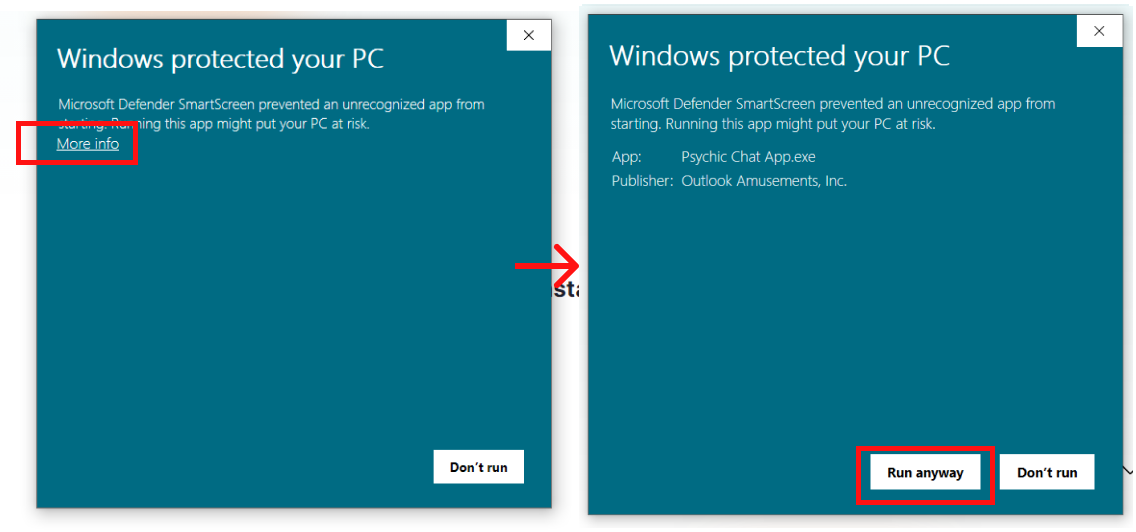
- Note for Chrome users, you may have an additional prompt, titled "Windows Protected Your PC", find and click on the "Show more" drop-down arrow. Expand this box to view this prompt.
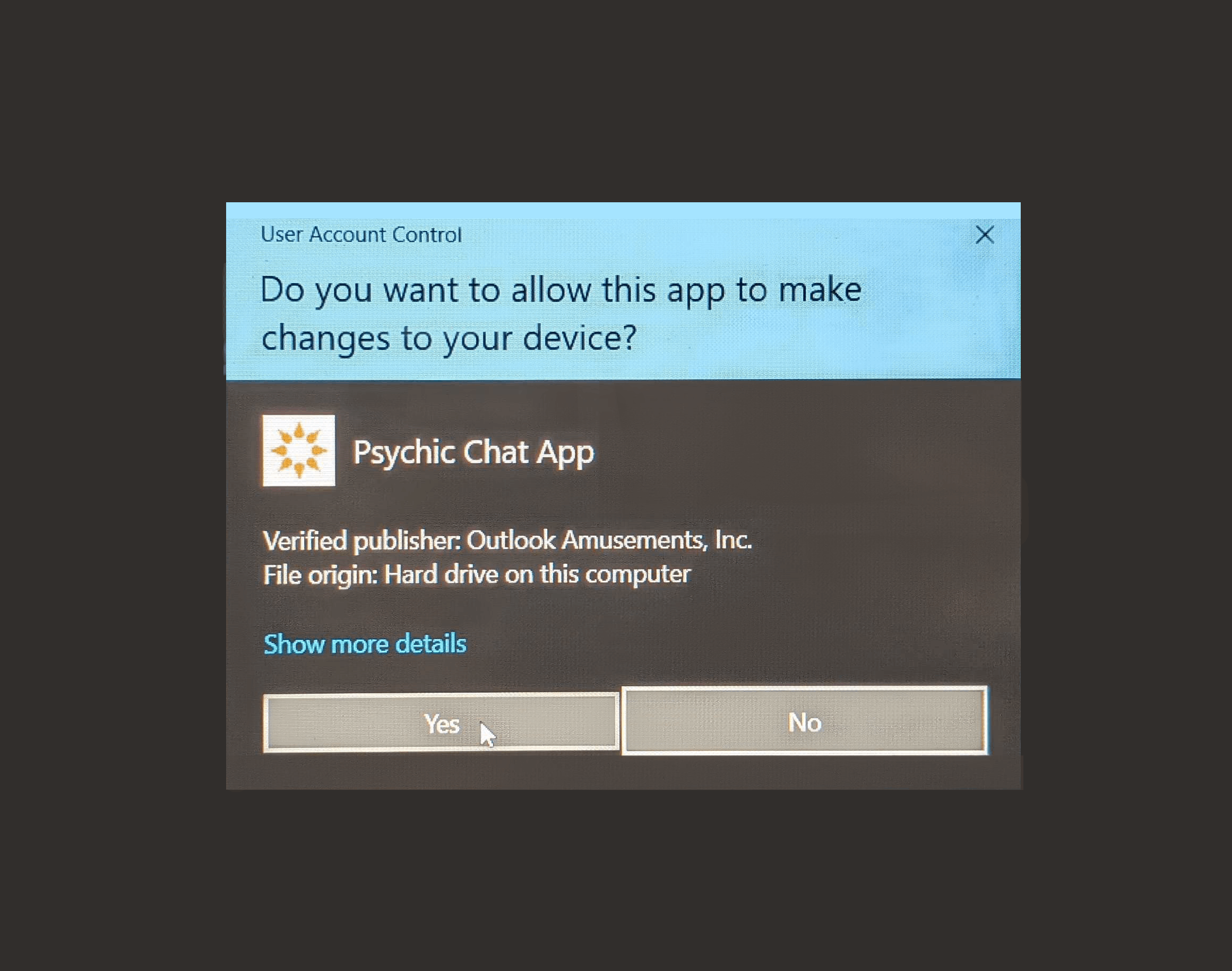
- Your computer will prompt you to confirm the start of the installation process, click "Yes", to proceed.
- The Setup dialog prompt will load, and you can click "Install", to begin the install
- Once the dialog box begins, you will see a loading bar, and then it will prompt you to click "Finish" the install process. Finish install by clicking Finish (Here is a quick gif on the full installation process - Windows only | End to End installation example)
- Once installed, the application should automatically startup. In the future, you can find the app by searching for it in your applications search bar and adding it to your toolbar by right-clicking, and then left-clicking on "Pin to Taskbar".
How to install Psychic Desktop App on your desktop computer
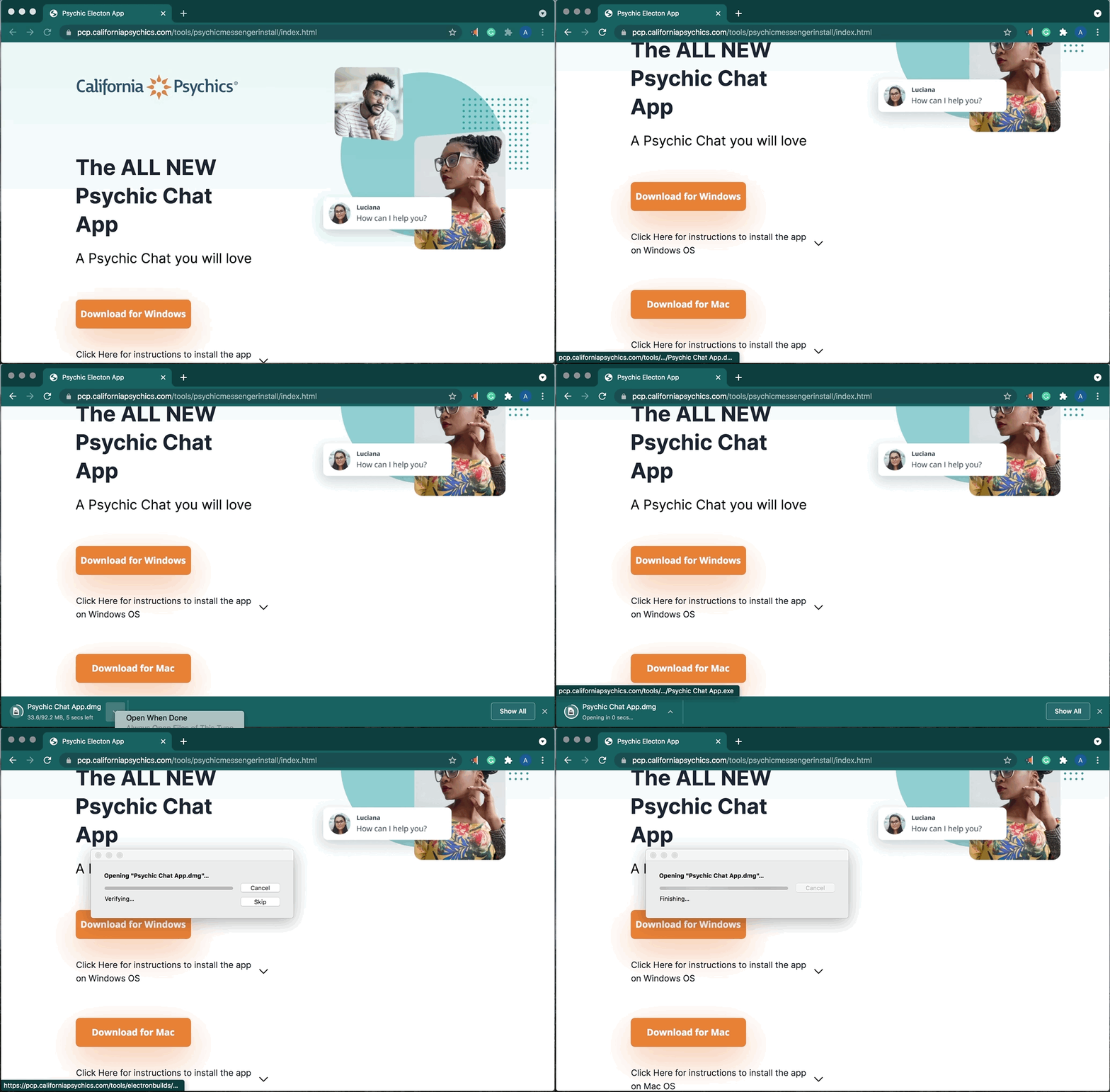
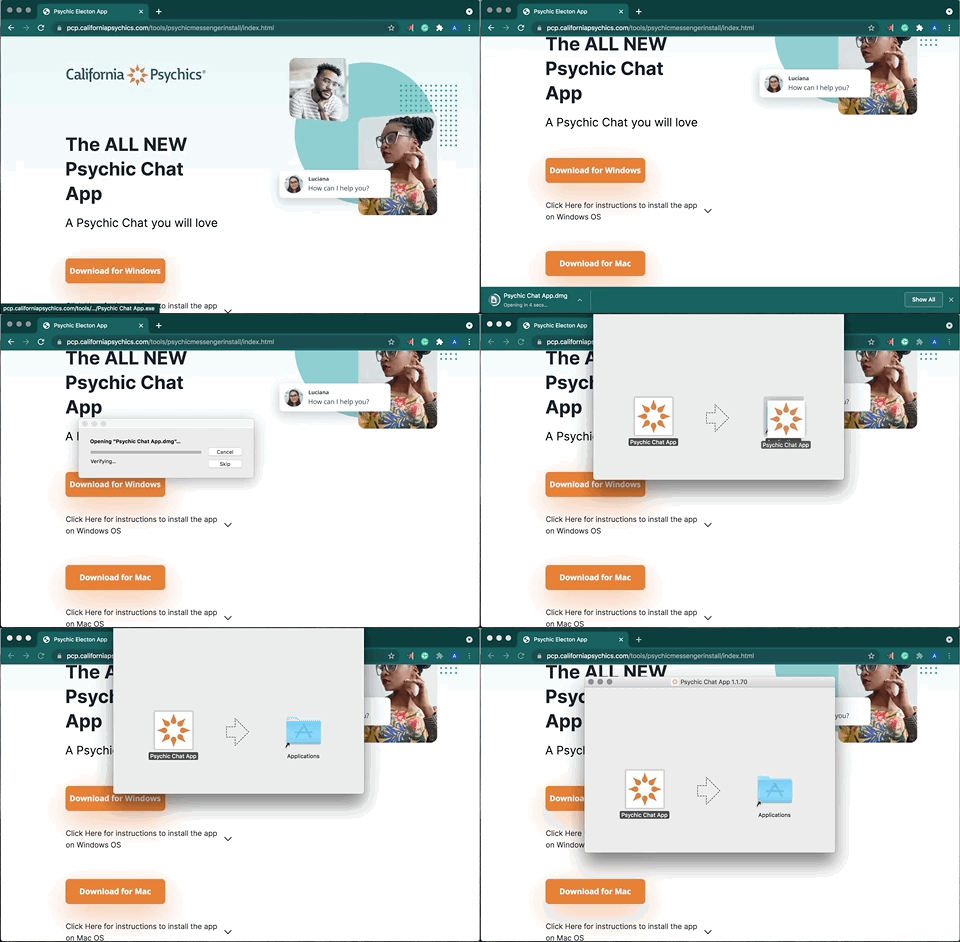
- Using your Chrome browser download the desktop app from our website. Initiate the download by clicking the button "Download for Mac". Note, do not use Microsoft's Edge Browser for installation.
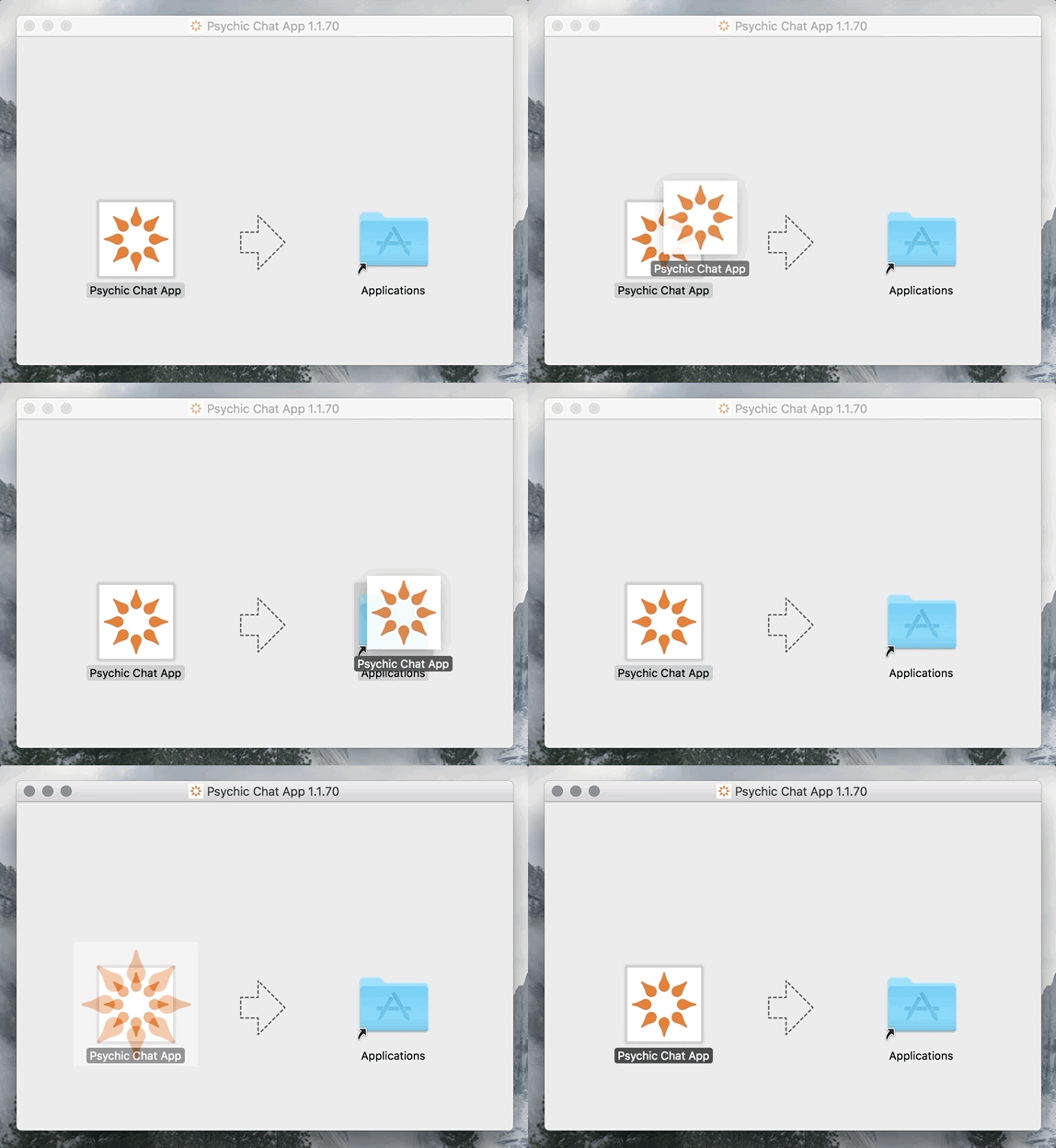
- Initiate installation by double-clicking on the downloaded file/package found at the bottom of your browser window or in your downloads folder, the file will be called "Psychic Desktop App.dmg".
- A window will appear with a California Psychics icon and a folder. Drag the California Psychics icon into the folder.
- Double click the California Psychics icon to run the app, then close that installation window.
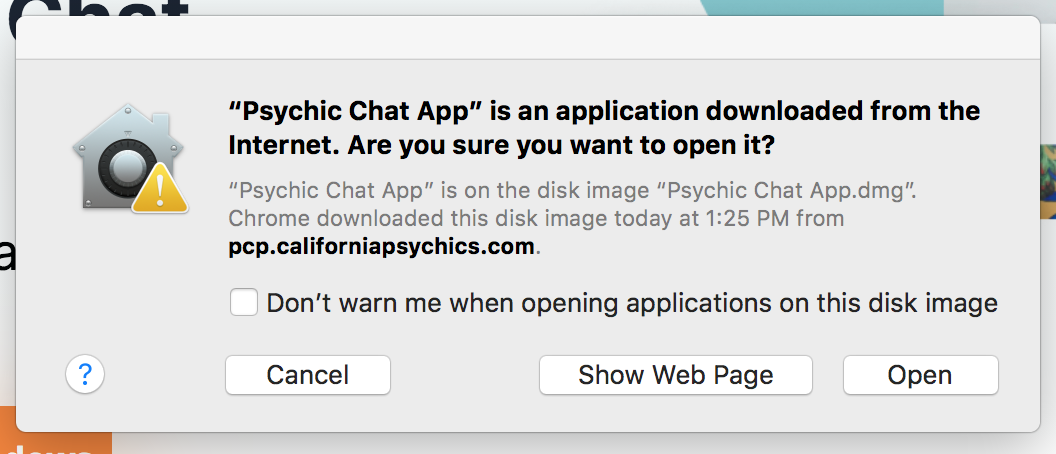
- Your computer will ask you to confirm the open command. Click "Open", to launch the app
- Once installed, the application should automatically startup. You should see the app icon appear on your desktop as a shortcut. You can also find the application in your Applications folder, and double-click the app icon to open it.
Key Benefits
Improved Chat Experience
The Psychic Desktop App improves your experience, enabling you to provide top-quality psychic
readings more comfortably in this digital world.
Audio Notifications
Do you sometimes miss incoming chats because you stepped away from your computer for just a
moment? The Psychic Desktop App provides you with audible notification
features so that you can always hear when a new message arrives, whether you have your PAT
window open or not!
Resizable Chat Window
Having a tough time reading your incoming chats and offline messages? The Psychic
Desktop App allows you to customize the sizing of your chat window for
improved visibility.